The Desktop App
FlightDeck Desktop is a native window for macOS, Windows and Linux. It works on the projects on your own computer, and it is the screen for a worker. Agents, worktrees, Git, shortcuts, notifications and saved state are the same as in the terminal UI, so you can switch between the two at any time. Quickstart: Desktop covers installing it.
The launcher
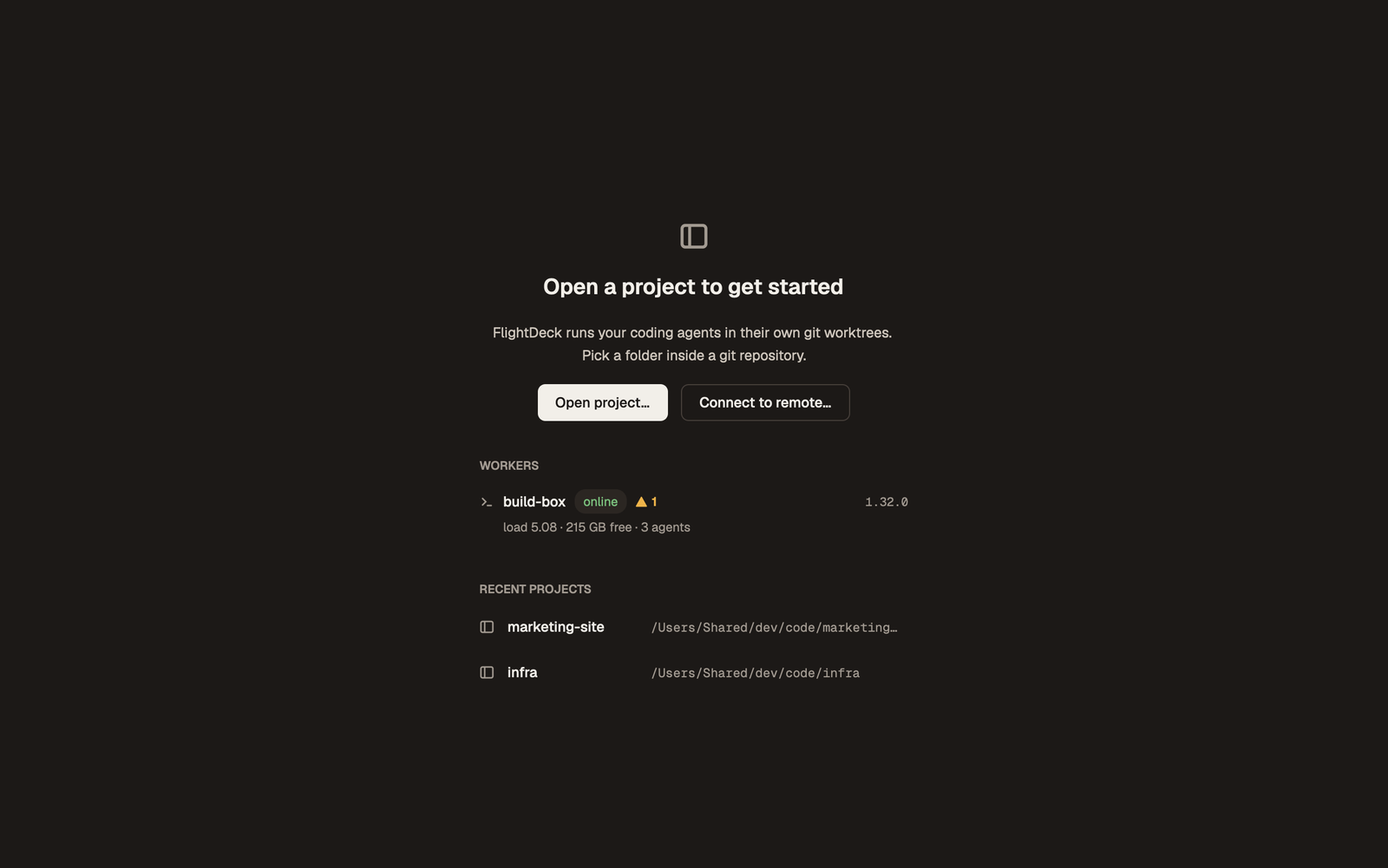
With no project open, the window shows the launcher: Open project…, Connect to remote…, your recent projects, and your saved workers with their status. Click any of them to open it.
The Projects view
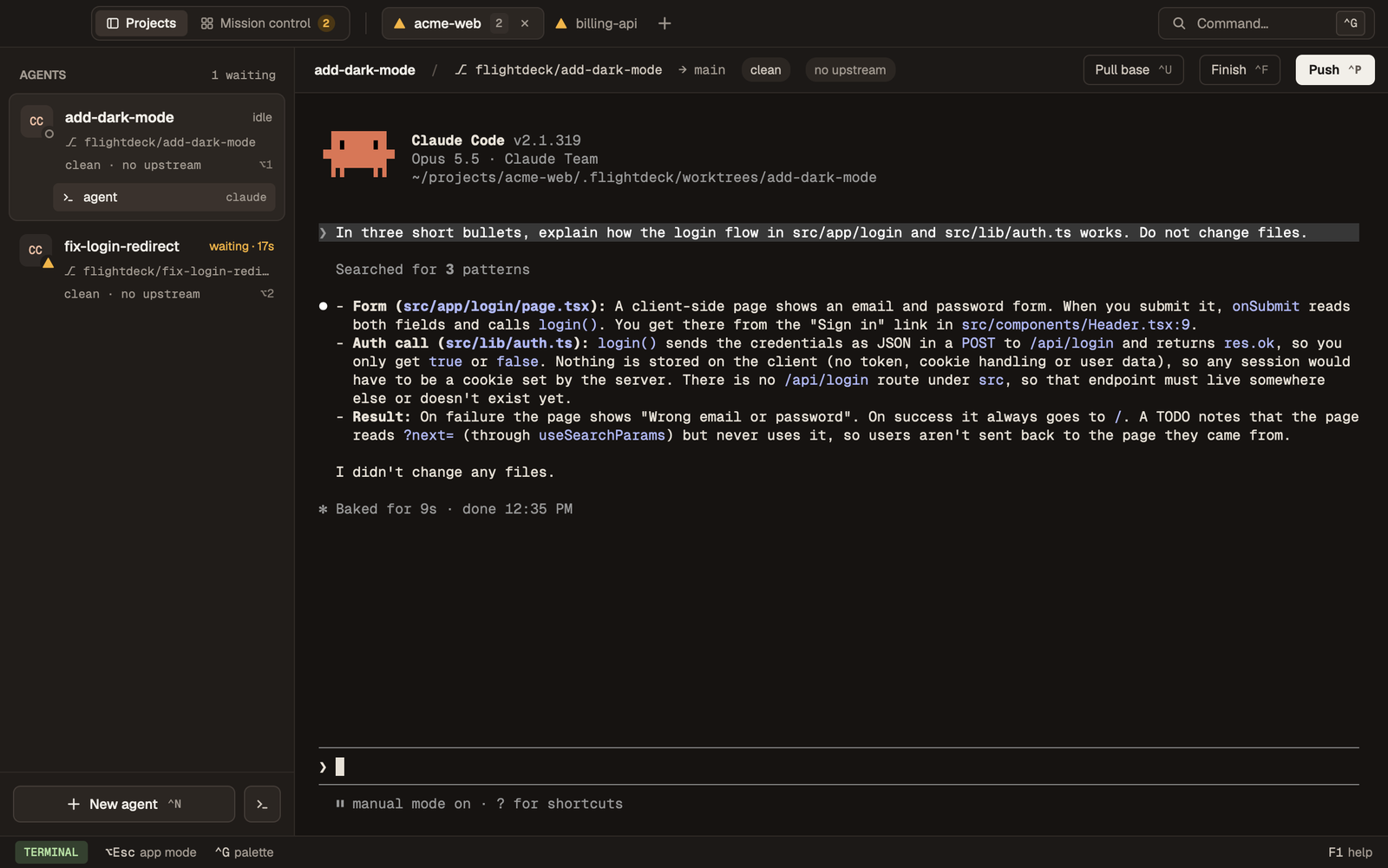
- Titlebar: one tab per open project, each with a status dot, and the switch between Projects and Mission control.
- Sidebar: one row per agent, with its status (working, waiting, done,
idle) and how long it has been that way. New agent starts another. An
agent's extra shells (
Ctrl-t) are listed under it. - Terminal: the selected agent, or one of its shells. While it has focus, every key goes to the program in it.
- Git strip: the branch and its changes, ahead/behind, and the buttons Pull base, Finish and Push. See Git Workflow.
Mission control
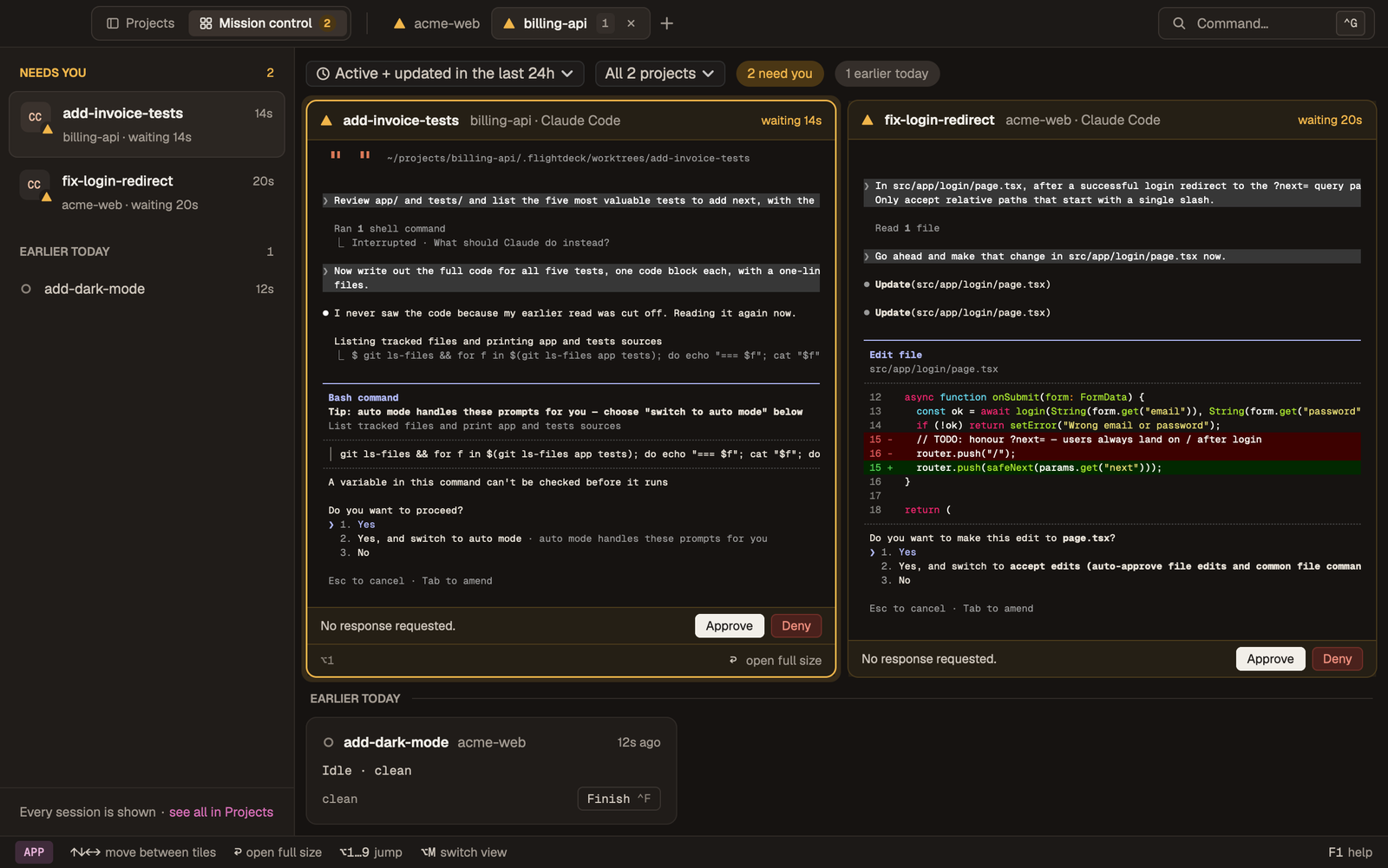
Mission control (Alt-m) shows every live agent across all open projects as
tiles. Agents that need you come first, then working ones, then the most
recently updated. Quiet agents that were active recently appear as smaller
cards; the scope menu sets how far back that reaches (24 hours, 7 days, all) and
can narrow the view to one project.
Press Enter on a tile to open that agent full size with its terminal focused,
and Alt-Esc to go back to the grid. When an agent is waiting on a permission
prompt FlightDeck recognises, the tile offers Approve and Deny (or one
button per option) right there.
Mission control works the same in a remote window, a worker's or one opened with Connect to remote…: tiles for every live session on that host, cards below, Approve and Deny on the tile. Browsing stays in your window and never changes what the host is looking at. Your choice of view and scope lasts as long as the window is open. A host on an older FlightDeck still shows its live sessions, but its prompts are answered by opening the session. Split view isn't available in a remote window.
The command palette
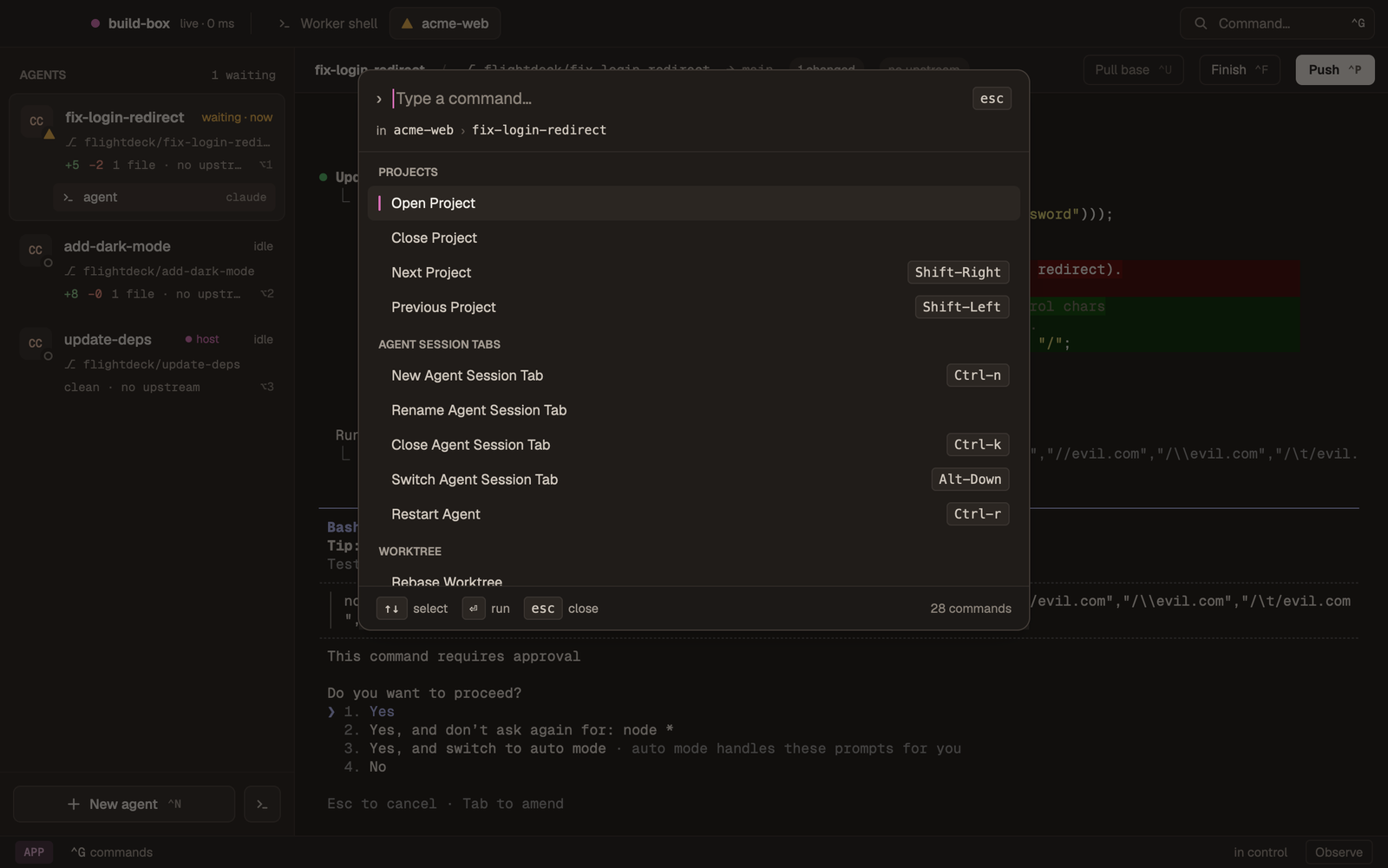
Ctrl-g opens a searchable list of every action, in every mode. Type to
filter and press Enter, or click a row. A few actions, such as Rebase
Worktree, Open Configuration and Open Worktree in VS Code, are only in the
palette.
Keys and mouse
Every shortcut is the same as in the terminal UI. The keyboard reference has the full table. On the Desktop:
Alt-mswitches between Projects and Mission control. It works when FlightDeck has the keys; from a focused terminal pressAlt-Escfirst.- On macOS, Option works as Alt for every FlightDeck shortcut, with no setting to change.
- On macOS, Cmd is left to the system. FlightDeck binds only
Cmd-V(paste),Cmd-,(settings),Cmd-O(open project) andCmd-Q. In a focused terminal,Cmd-Ccopies the selection andCmd-=/Cmd--/Cmd-0zoom the text. The default size is theui.desktop_terminal_font_sizesetting (13).
In the terminal, drag to select; the selection is copied when you let go. Shift-drag selects even when the program uses the mouse itself. The wheel scrolls the history unless the program uses the mouse. Typing returns to the live screen.
Updates
The app checks for a new release once a day. When one is out, a banner offers Update now, which downloads it, checks it and asks you to restart. A copy installed by a package manager tells you which command to run instead.
Other machines
Besides workers, the Desktop can open a window onto the terminal UI or Desktop running on another computer. See Control Any FlightDeck.