Agent Tabs & Worktrees
An agent tab is the unit of work in FlightDeck: one task branch, one Git worktree, one primary agent, and any child shells you add. This page covers creating, switching, renaming, and closing them.
Create a tab
Press Ctrl-n (or command palette → New Agent Session Tab). FlightDeck
walks you through a short flow:
- Choose an agent — pick from your configured agents.
- Choose a target — press
Tabto cycle between a new branch, an existing local branch, and the project base branch. - Name or select the branch — a new task name becomes a branch slug, e.g.
fix-login→flightdeck/fix-login; existing-branch mode provides a searchable local branch picker and creates a managed worktree for that branch.
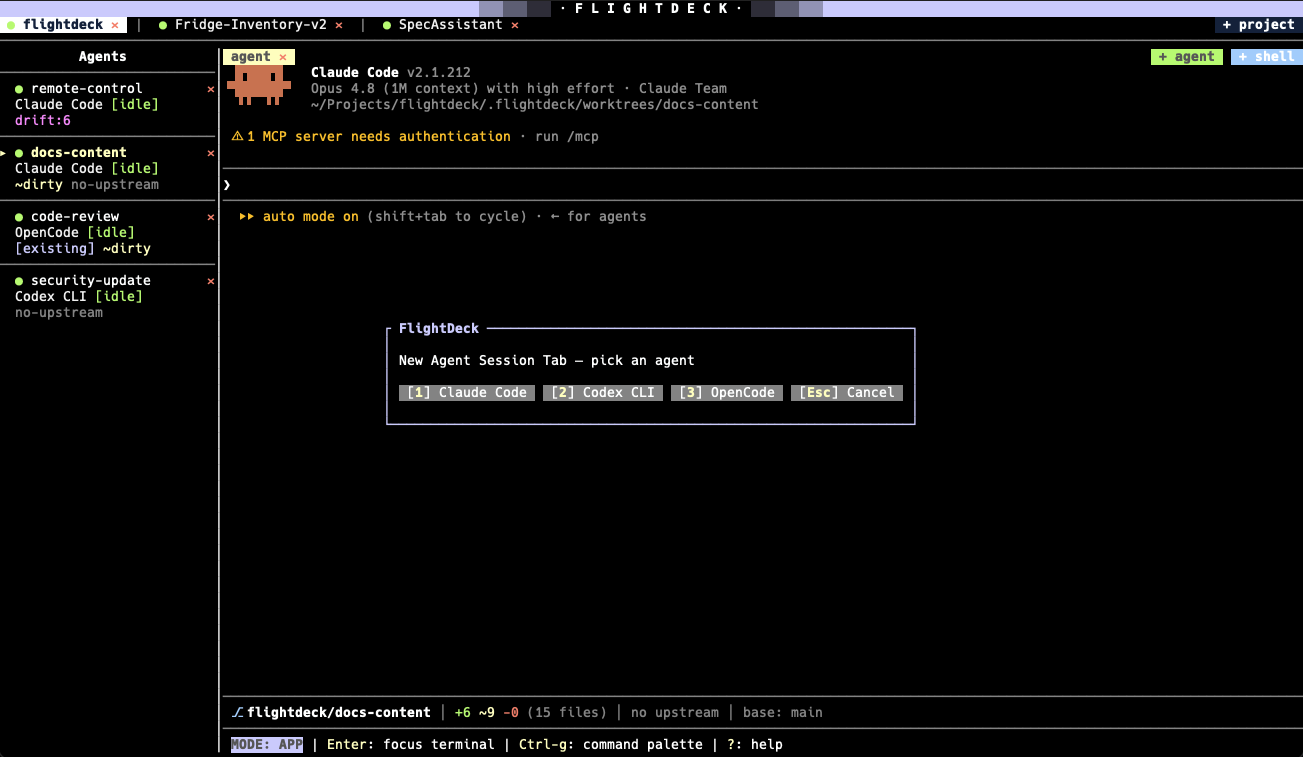
Picking which agent runs in a new tab — mix Claude Code, OpenCode, Codex and Cursor across tabs.
FlightDeck then:
- validates the agent's command exists on your
PATH, - creates (or attaches to) the
flightdeck/<slug>branch, - creates (or reuses) a worktree at
.flightdeck/worktrees/<slug>, - runs the repo's
worktree_createdhook in a freshly-created worktree (e.g.npm install), if one is configured, - launches the agent in the worktree and focuses its terminal.
If the generated branch already exists, or you select one explicitly,
FlightDeck attaches to it and tells you (it never silently reuses a branch).
Existing branches do not need the configured flightdeck/ prefix. A branch
already checked out in another worktree is refused, with the path that holds it.
Switch between tabs
Alt-↑/Alt-↓— previous / next agent tab (works in both modes).Alt-1…Alt-9— jump straight to a tab by position.- In app mode, bare
↑/↓also move between tabs. - Or click a tab in the Agents sidebar.
Each sidebar row shows the agent, its live status, and compact Git indicators for its worktree.
Rename a tab
Command palette → Rename Agent Session Tab. This changes the display label only — the branch, slug, worktree, and base metadata are never touched.
Several agents in one worktree
Sometimes you want two agents on the same branch and worktree — for example, a
coder and a reviewer. Use the + agent button on the terminal tab row (or
palette → New Agent) to spawn an additional agent in the current worktree. It
appears alongside the first as agent, agent 2, agent 3… Close one with
Close Agent or its ✕.
This is different from Ctrl-n, which always creates a brand-new tab with its
own branch and worktree.
Close a tab
Press Ctrl-k (or palette → Close Agent Session Tab). FlightDeck shows an
options menu and never auto-escalates to a force-kill:
- Send Ctrl-C to primary (the default),
- Send Ctrl-C to all terminals,
- Force-terminate the process tree,
- Close only if all processes are already stopped,
- Cancel.
Closing a tab stops its processes but leaves the worktree and branch in place. To also remove the worktree, use Abandon Worktree.
The sidebar's per-tab ✕ opens a quick choice menu: Abandon worktree,
Close agent, or Cancel.
Recovery across restarts
When you quit and relaunch, FlightDeck reconstructs your tabs from state.json
and a scan of .flightdeck/worktrees/. Agents whose worktree still exists are
resumed automatically once the screen is ready; a tab whose worktree has gone
missing is surfaced as a warning rather than silently dropped.