Quickstart: Worker
A worker is FlightDeck running on another machine with no screen of its own: a spare Mac, a Mac mini under the desk, or a Linux box. The agents, their worktrees and Git all live there. FlightDeck Desktop on your laptop is the screen. Close the laptop and the agents keep working. Open it again and you pick up where they are.
 worker (Mac or Linux, always on)                your computer
 ┌────────────────────────────────┐              ┌──────────────────────────┐
 │ flightdeck worker              │   Tailscale  │ FlightDeck Desktop       │
 │  projects, agents, git, shell  │◄────────────►│  (or a browser, or       │
 │                                │              │   flightdeck connect)    │
 └────────────────────────────────┘              └──────────────────────────┘
Setup takes about 15 minutes, once. After that you only use the Desktop, or a browser on any device in your tailnet.
What you need
- A worker machine running macOS or Linux (x86_64 or arm64) that stays on. Windows can't be a worker.
- Tailscale on the worker and on your computer, signed in to the same tailnet. The worker is only reachable over Tailscale, never on your local network or the internet, so there is nothing else to secure.
- FlightDeck Desktop on your computer. Follow step 1 of the Desktop quickstart if you don't have it yet.
- SSH access to the worker for the first two steps. After that, the Desktop gives you a shell on the worker.
1. Install and start the worker
SSH in to the worker and install the flightdeck command:
brew install neworange-ruud/tap/flightdeck
# or, without Homebrew:
curl --proto '=https' --tlsv1.2 -LsSf https://github.com/neworange-ruud/flightdeck/releases/latest/download/flightdeck-installer.sh | sh
Then start the worker:
flightdeck worker start
It returns once the worker is running in the background. If it can't start, it tells you why.
Then make it come back on its own after a reboot:
flightdeck worker enable
This hands the worker to your system's service manager (launchd on a Mac, systemd on Linux). Your projects and agents resume where they were after every restart.
2. Pair your Desktop
Still on the worker, run:
flightdeck worker pair
Pairing code: 4821   (valid for 120 s, single use)
Address:      box.tail1234.ts.net:7420
In a browser: https://box.tail1234.ts.net:7420/#4821
On your computer, open FlightDeck Desktop, choose Connect to remote…, and
enter the address and the code. The code works once and expires after two
minutes; run flightdeck worker pair again if it runs out.
Or use a browser. Open the In a browser link on any device in your tailnet (a laptop without the Desktop, a tablet). The code is in the link, so the page signs you in at once and remembers the browser. You get the same things as the Desktop's worker window: the Worker shell, your projects and agents, and Open Project. Pair the Desktop, a browser, or both; each needs its own code.
The link is https:// when your tailnet has HTTPS certificates turned on (see
HTTPS); otherwise it is http:// on the worker's
Tailscale address, which still travels encrypted inside Tailscale.
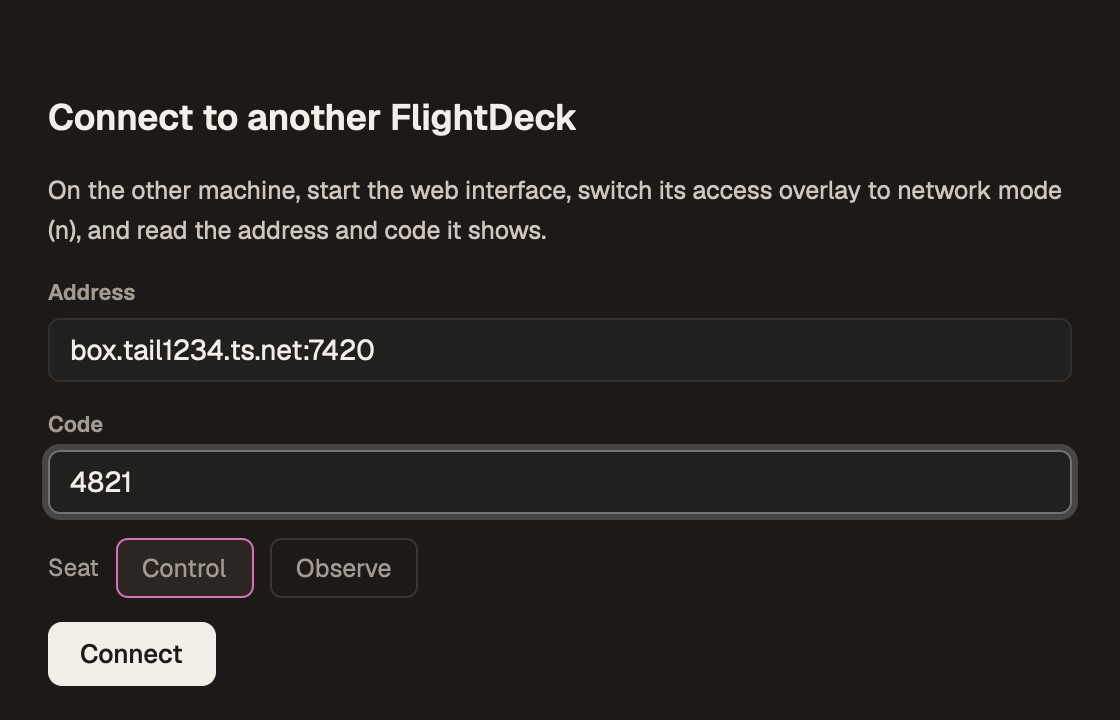
You only pair once. From then on the worker is listed under WORKERS in the launcher, with a status pill and its load, disk space and agent count. Click it to open the worker's window. You can rename it there to something friendlier than its hostname.
3. Log in to your agents on the worker
The agents run on the worker, so they need to be logged in there. The first tab in the worker's window is the Worker shell, a terminal on the worker. Use it like any terminal:
- Run each agent CLI you want to use (
claude,codex,opencode,cursor-agent) and finish its login. - Make sure Git can push. Run
gh auth login, or put an SSH key on disk and check it withssh -T git@github.com.
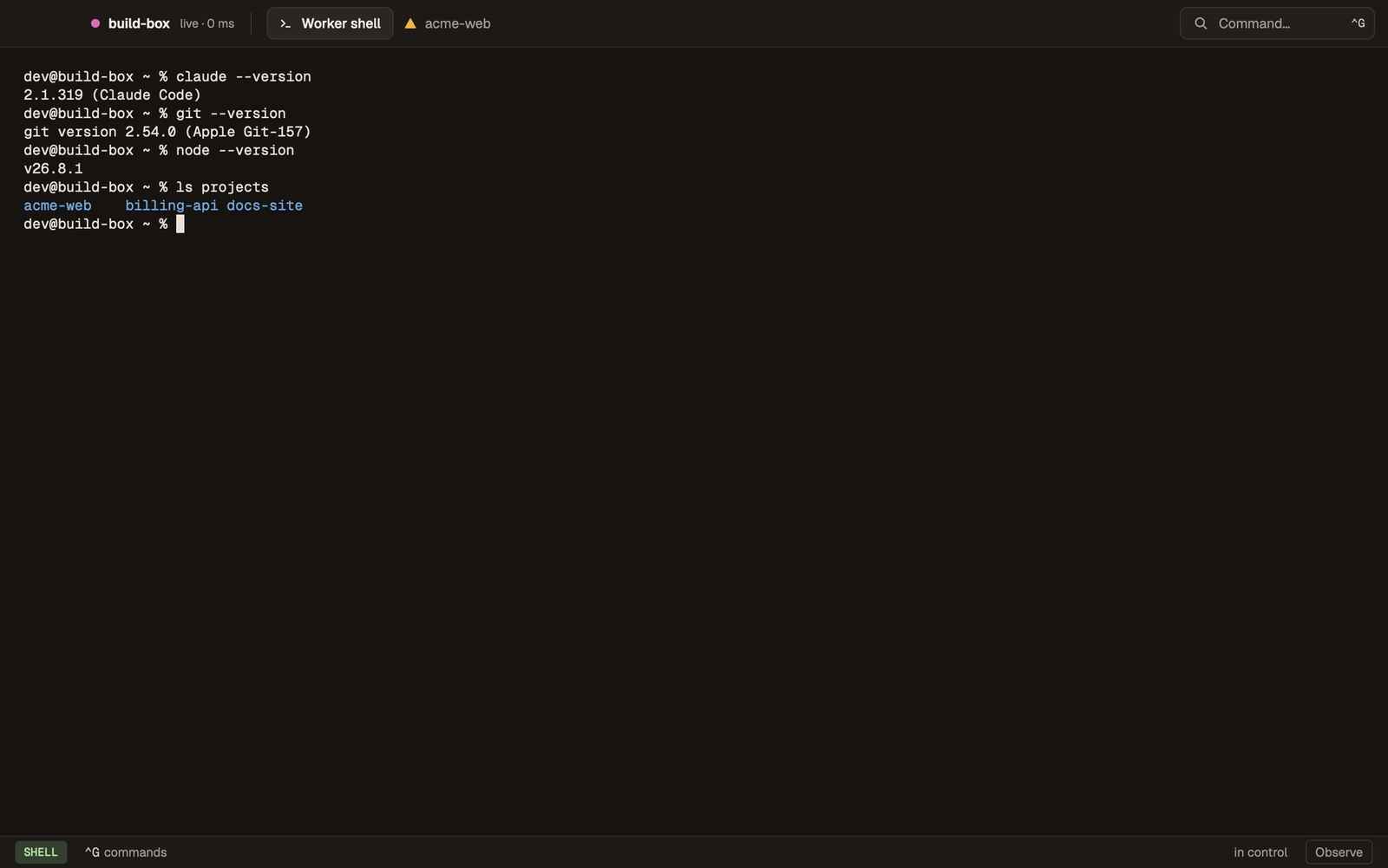
FlightDeck never stores or forwards your agent or Git credentials. Agents use whatever login the worker account has.
4. Open a project
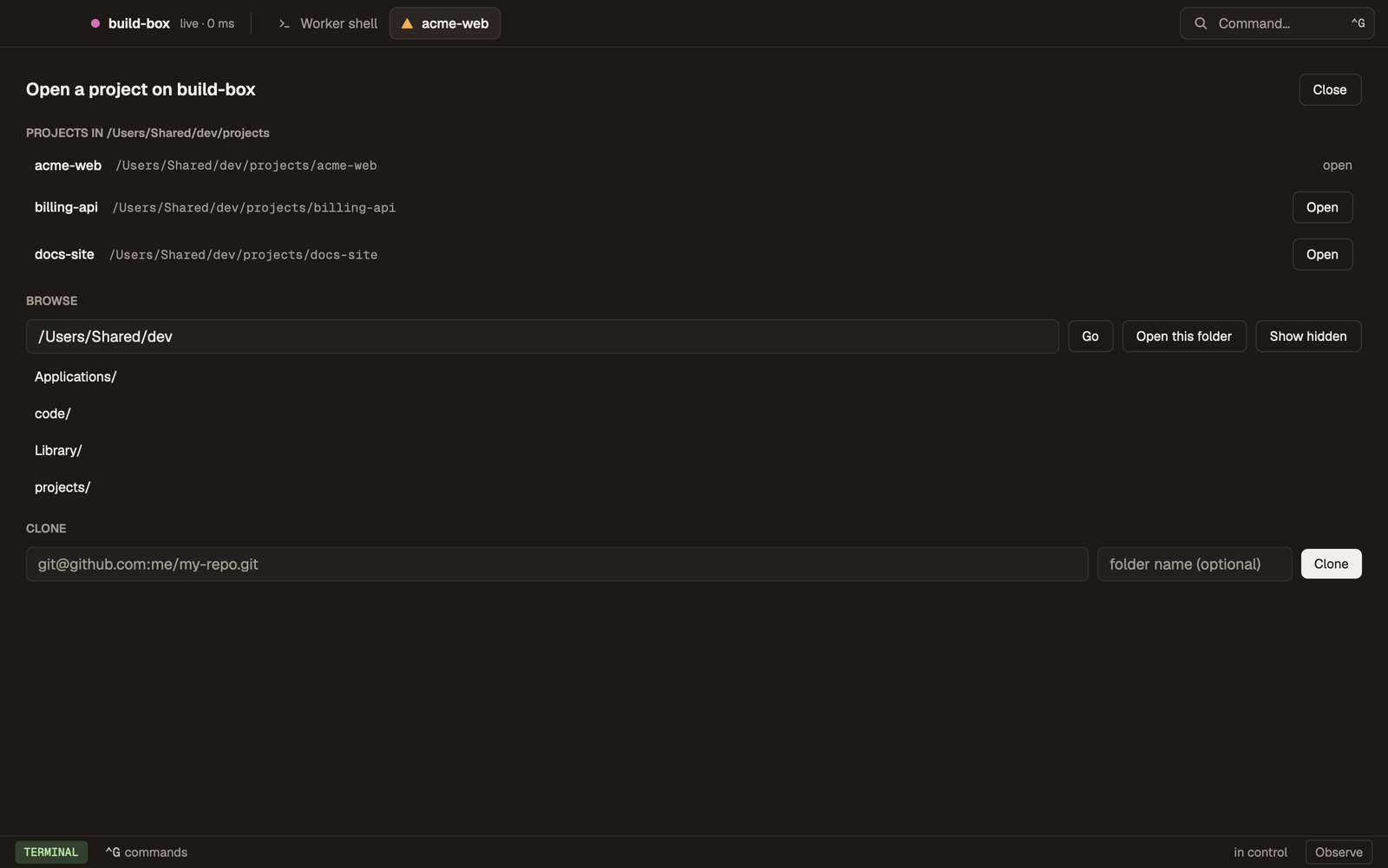
Choose Open a project… in the worker's window. You can:
- pick a repository the worker already has (it looks in
~/flightdeckby default), - browse the worker's home folder for one, or
- paste a Git URL to clone it onto the worker.
5. Work as usual
From here it is the same app. Press Ctrl-n to start an agent, watch the
sidebar, push from the git strip. Everything on the
Desktop quickstart applies.
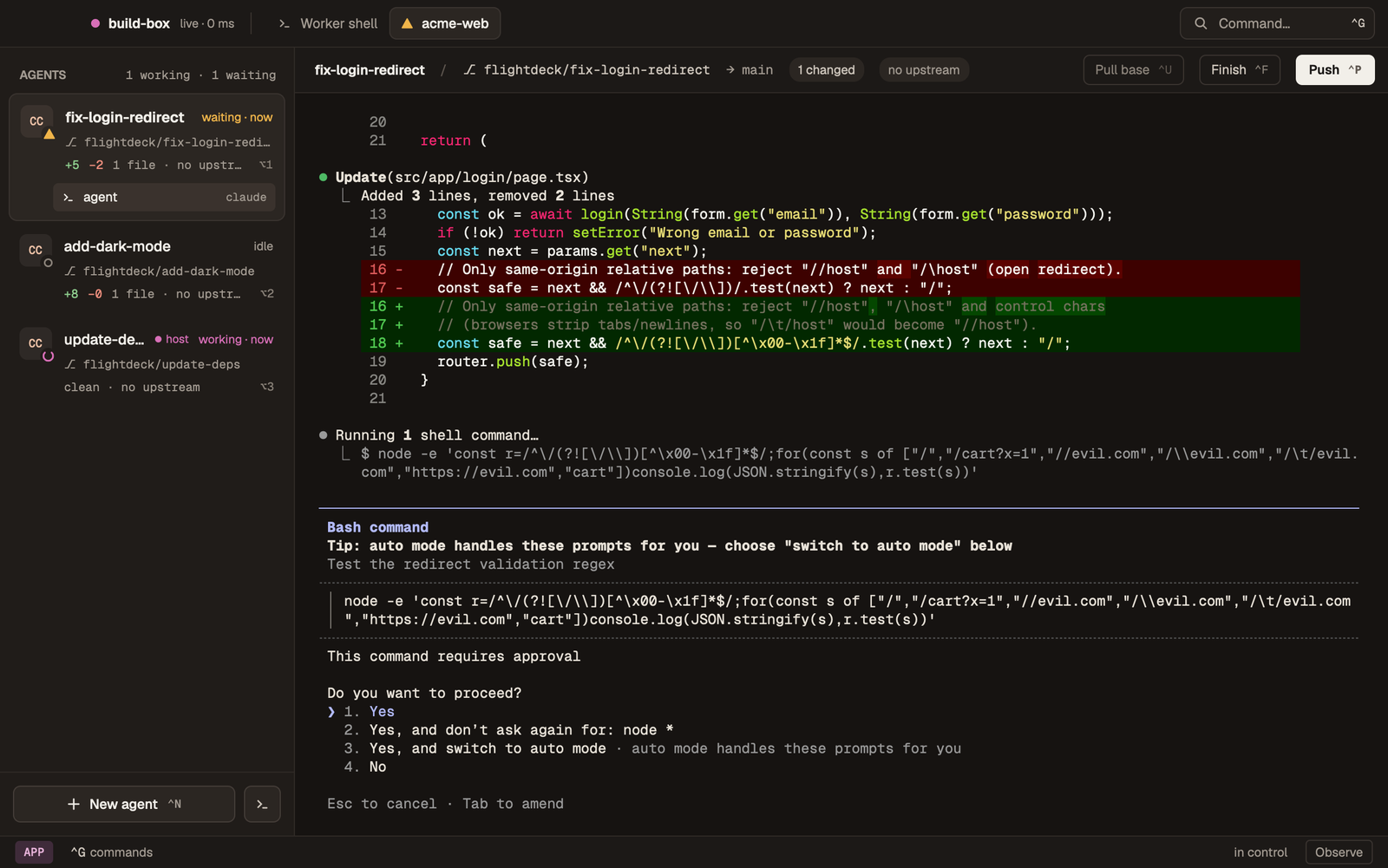
A few things are different on a worker:
- Closing the window doesn't stop anything. The agents keep running, and the Desktop still sends you a notification when one needs you or finishes.
- One window at a time. If you open the worker from a second computer, that window takes over and the first one offers Reconnect.
- Mission control works here too (
Alt-m): every live agent on the worker as a tile, and you can approve or deny a waiting agent's prompt from its tile. Browsing never changes what another window sees. Split view isn't available in a worker's window.
Upload files to the worker
To put files on the worker (a dataset, a screenshot for an agent, a config file that isn't in Git), choose Upload files… in the worker's window, in the Desktop or a browser. You can also find it in the command palette, or drop files onto the window.
- Pick one or more files. Drop more on the panel or use Add files… to add to the list.
- Check the folder they go to. It starts at the worktree of the agent you're looking at, or the project's folder. Choose… browses the worker's home folder for another one.
- Choose Upload. Each file shows its progress, and Cancel stops the rest.
If a file with the same name is already in that folder, nothing is overwritten
until you say so: the window lists the names and asks Replace, Keep both
(the new file is saved as name (1).ext) or Cancel. A replaced file gets
the usual permissions for a new file, so a script you replace needs
chmod +x again.
Uploads go into the worker account's home folder only, like browsing does. Folders can't be uploaded yet, only the files in them.
Use a terminal instead of the Desktop
flightdeck connect is the terminal UI attached to a worker. It works from any
machine with the flightdeck command, over SSH too. Pair once (run
flightdeck worker pair on the worker first):
flightdeck connect --pair box.tail1234.ts.net
Then connect whenever you like:
flightdeck connect
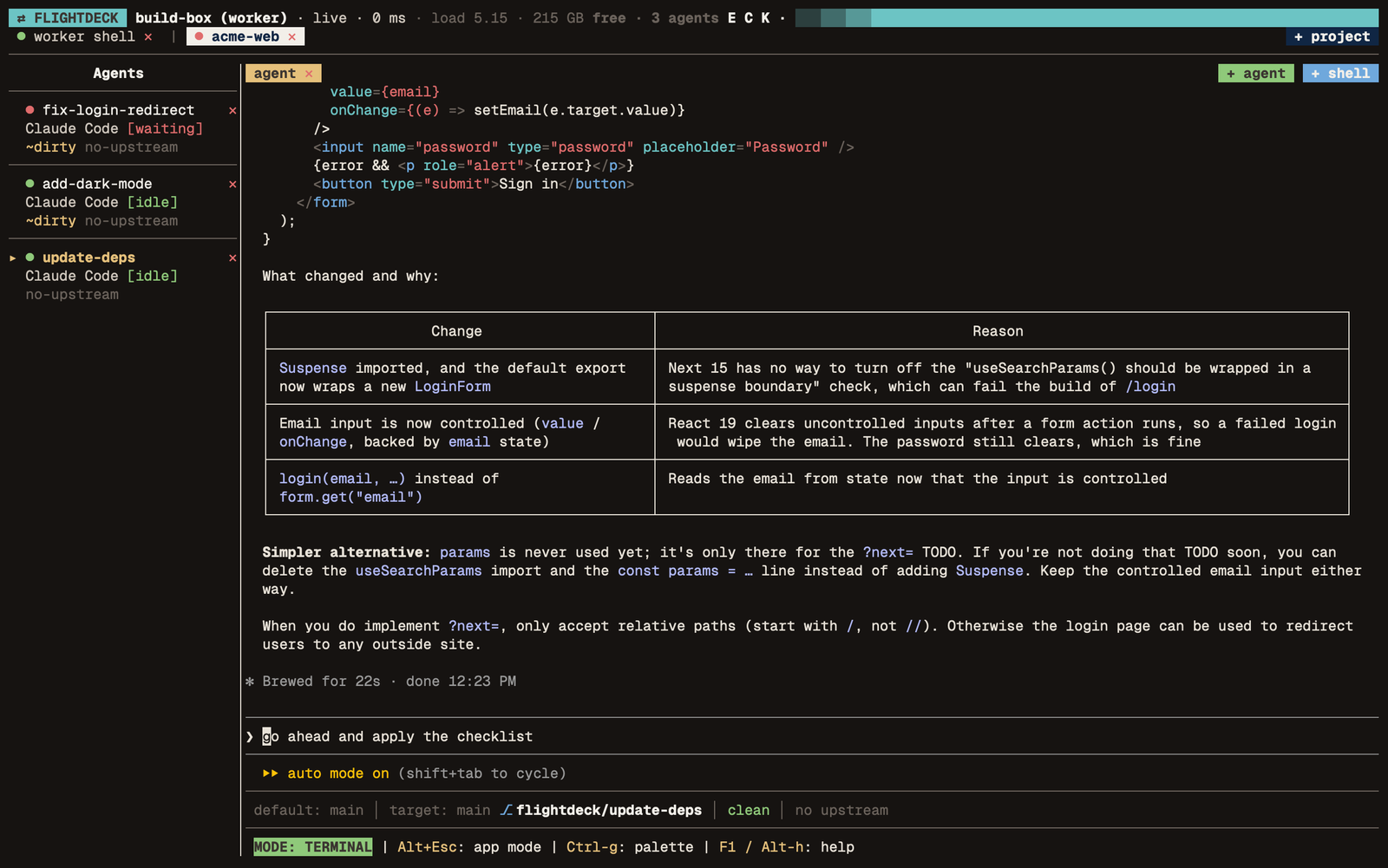
The Desktop and flightdeck connect share their pairings, so a worker paired in
one shows up in the other. Ctrl-q disconnects; the worker keeps running.
If something looks wrong
| You see | Do this |
|---|---|
| offline in the WORKERS list | Check Tailscale is up on both machines (tailscale status). On the worker, flightdeck worker status says whether it runs. |
| "The worker stopped." | Run flightdeck worker start on the worker, then Reconnect. |
| version differs or update needed | Update the older side. On the worker: flightdeck update, then flightdeck worker restart. |
| Taken over by … | Another window opened the worker. Reconnect takes it back. |
| An agent says it isn't logged in | Log in again in the Worker shell (step 3). |
Worker in Depth covers the security model, logs, crash
recovery, updating, phone pairing and the [worker] settings.