The Feed & Notifications
The Feed is FlightDeck Remote's home surface: one flat, newest-first list of every project across all the Macs you've paired, with the ones that need you floated to the top. It's paired with push notifications that reach you even when the app is closed.
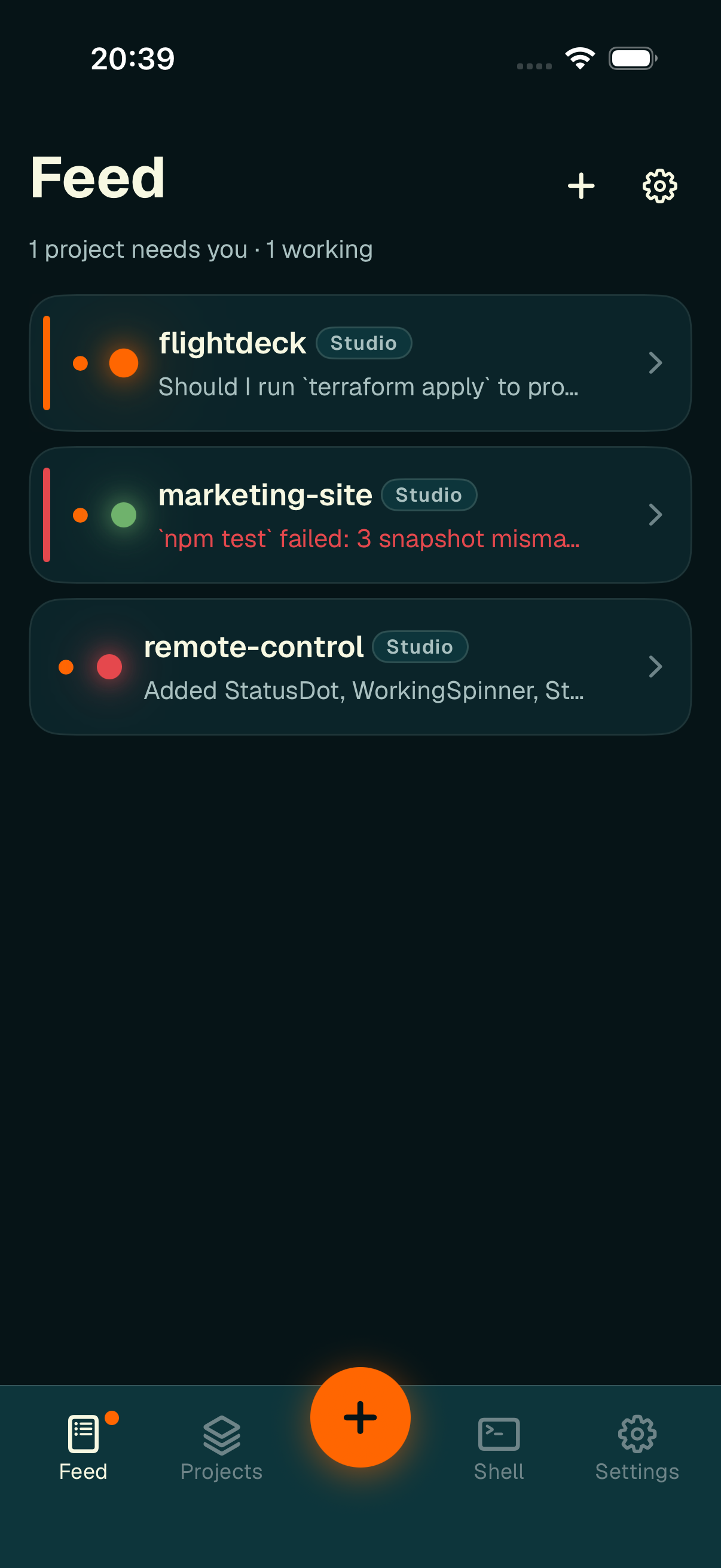
One list across every paired Mac — attention first, each row tagged with the machine it lives on.
What's in the Feed
The Feed leads the tab bar (the leftmost tab). Each row is a project on one of your Macs and shows:
- an unread dot on the left — a filled accent dot when the project has a new event you haven't seen, a hollow ring once read,
- a status dot (orange needs input · red working · green/dim idle),
- the project name and a small machine chip naming the Mac it belongs to, so an interleaved, multi-machine list is always attributable at a glance,
- a one-line event summary — e.g. an agent that needs input (orange) or hit an error (red),
- for a project on a Mac that's currently unreachable, the row is dimmed with an Offline badge and a retry button (↻) that reconnects just that machine, leaving your other Macs' live connections untouched.
Rows are sorted attention first: online machines that need you, then other online activity by recency, with offline machines last.
Opening a row
Tap a row to open it, which also marks it read. A row whose agent needs input or hit an error deep-links straight into that agent's chat; any other row opens the project's sessions list. Either way the detail screen is pinned to the machine the row belongs to — navigating elsewhere never switches it out from under you.
The Feed tab carries an unread badge counting the projects with new events across every machine; opening a row clears its dot.
Two controls sit in the Feed header:
+Add machine — pair another Mac (up to four).- ⚙︎ Settings — jump to the Settings tab.
Pull down to refresh to resync every connected machine and retry every offline one in a single gesture.
Push notifications
The same status events arrive as push notifications when you're away from the app, delivered through Apple Push Notification service via the relay.
- Needs input — a time-sensitive, distinctly urgent alert,
- Finished — e.g. "18 files changed · ready to push" with a standard chime,
- Error — a chime.
Each notification carries the machine it came from and deep-links straight to the right agent on the right Mac. Your home-screen badge shows the number of agents currently waiting for input across all your machines.
Choosing what notifies you
In Settings you control notifications with three independent toggles — Agent needs input, Agent finished, and Completion chime (all on by default; the chime is independent, so you can be notified silently).
You can also silence a whole machine or a single project:
- Mute a machine — each row in Settings → Machines has a bell toggle that mutes just that Mac's push (it deregisters only that machine's token, so your other Macs keep notifying).
- Mute by project — a "Mute by project" card lists your projects, each with its own toggle, so a noisy project can be silenced without affecting the rest.
Staying honest offline
When your phone can't reach the relay, the app shows your last-known state, clearly marked stale with a "Showing last-known state — offline" banner, and disables actions until the link returns. A Mac you can still reach keeps working normally while another shows as offline in the Feed. See Settings & Security for more on the offline cache and connection status.