Settings, Security & Offline
The Settings tab is where you check the connection, manage your paired Macs, lock the app, tune notifications, and unpair. This page also covers the security model and how the app behaves offline.
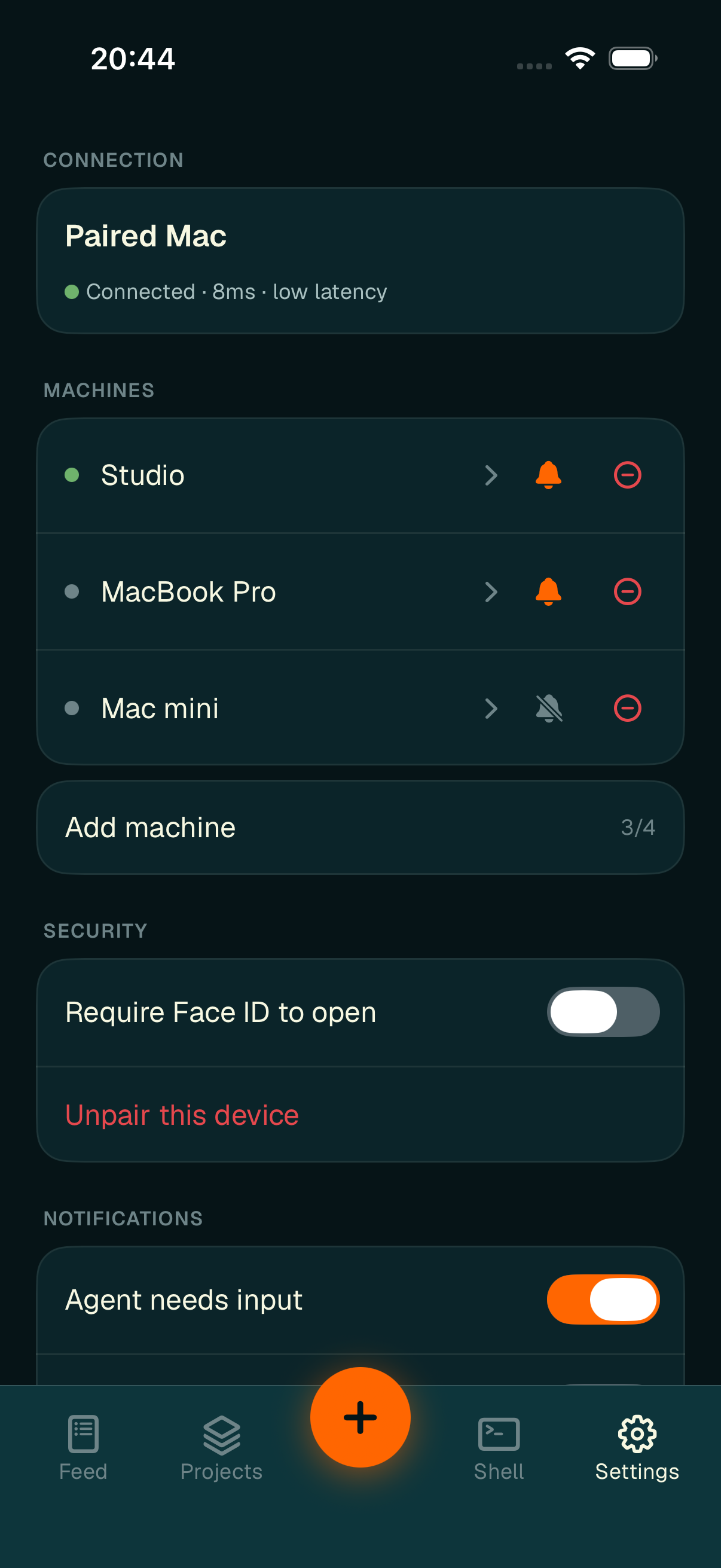
Settings — connection, your machines, security, and notification controls in one place.
Connection
The Connection card names the Mac you're focused on and shows the live link status with honest latency — "Connected · 8ms · low latency", "Connecting…", or "Offline." It also shows when you paired.
Machines
The Machines card lists every Mac you're paired with — one row each, with an online/offline dot and the machine's display name. Each row lets you:
- Rename it — tap the row to open Rename machine and set a name that overrides what the desktop reports (Reset to Mac's name clears the override). See Naming your Macs.
- Mute its notifications — the bell toggle silences push from just that Mac, without touching the others.
- Unpair it — the red minus (–) removes that one Mac after a confirmation and revokes it on the desktop; your other Macs stay paired.
Below the list, Add machine pairs another Mac and shows the live count against the limit (e.g. 3/4). At four it's disabled.
When the link drops, a Reconnecting banner appears at the top of the app with "Commands are paused until the link is back. Nothing is sent blind." After a sustained outage it adds "Still trying — is FlightDeck running on your Mac?"
App lock (Face ID)
Turn on Require Face ID to open in the Security section to gate the whole app behind biometrics. When enabled, a lock screen covers everything on launch and after the app has been backgrounded.
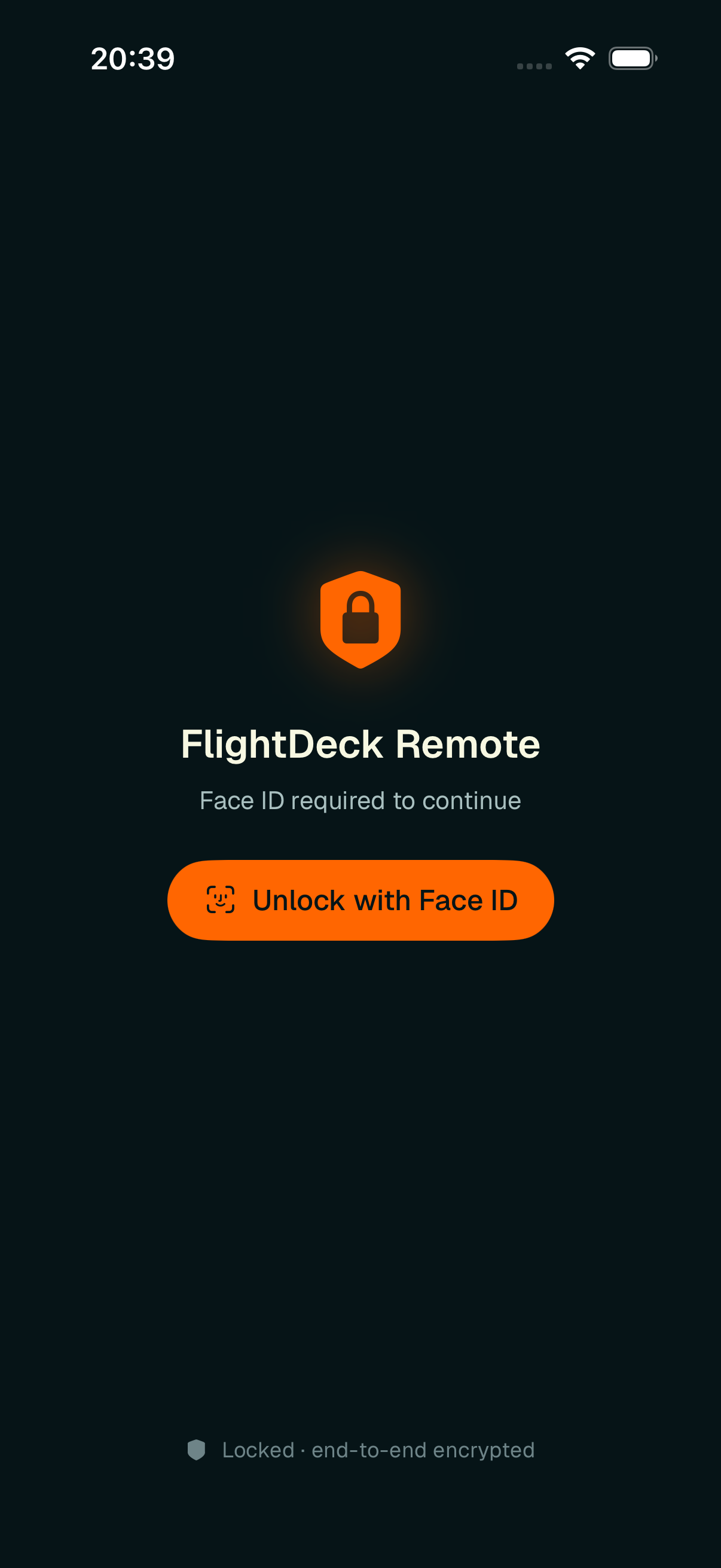
Optional Face ID lock — an extra gate on top of pairing.
Notifications
The Security card is followed by the notification controls covered in The Feed & Notifications: the three independent toggles (Agent needs input, Agent finished, Completion chime) and the per-project Mute by project list. To silence a whole Mac, use the bell toggle on its row in the Machines card above.
Unpair
Unpair this device (in red) disconnects the phone from every Mac after a confirmation and returns you to the pairing screen. To drop just one Mac and keep the rest, use the red minus (–) on its row in the Machines card instead.
The security model
- Your device holds an identity keypair whose private key lives in the iOS Keychain / Secure Enclave and never leaves the phone.
- All traffic between phone and Mac is end-to-end encrypted; the hosted relay routes opaque ciphertext by pairing ID and cannot read it. Each paired Mac is a separate encrypted channel, but they all share the phone's one device identity — unpairing one Mac never disturbs the others' keys.
- Pairing is the moment of trust — after it, your phone can send commands that run on your Mac, so only pair with a code/QR you can see on your own machine.
Offline behavior
When disconnected, the app shows your cached last-known snapshot and transcripts, read-only, behind a muted "Showing last-known state — offline" banner (distinct from the louder Reconnecting banner). No commands are sent while offline — reads stay available, but every action waits for the link to return.