Terminal UI Tour
flightdeck is the same workspace as FlightDeck Desktop, drawn
in your terminal. Install it as described in
Prefer the terminal? and run it inside a
Git repository, or attach it to a worker with
flightdeck connect. This page
is a tour of what's on screen and how the keyboard model works. For the exhaustive shortcut list, see
the Keyboard Shortcuts reference.
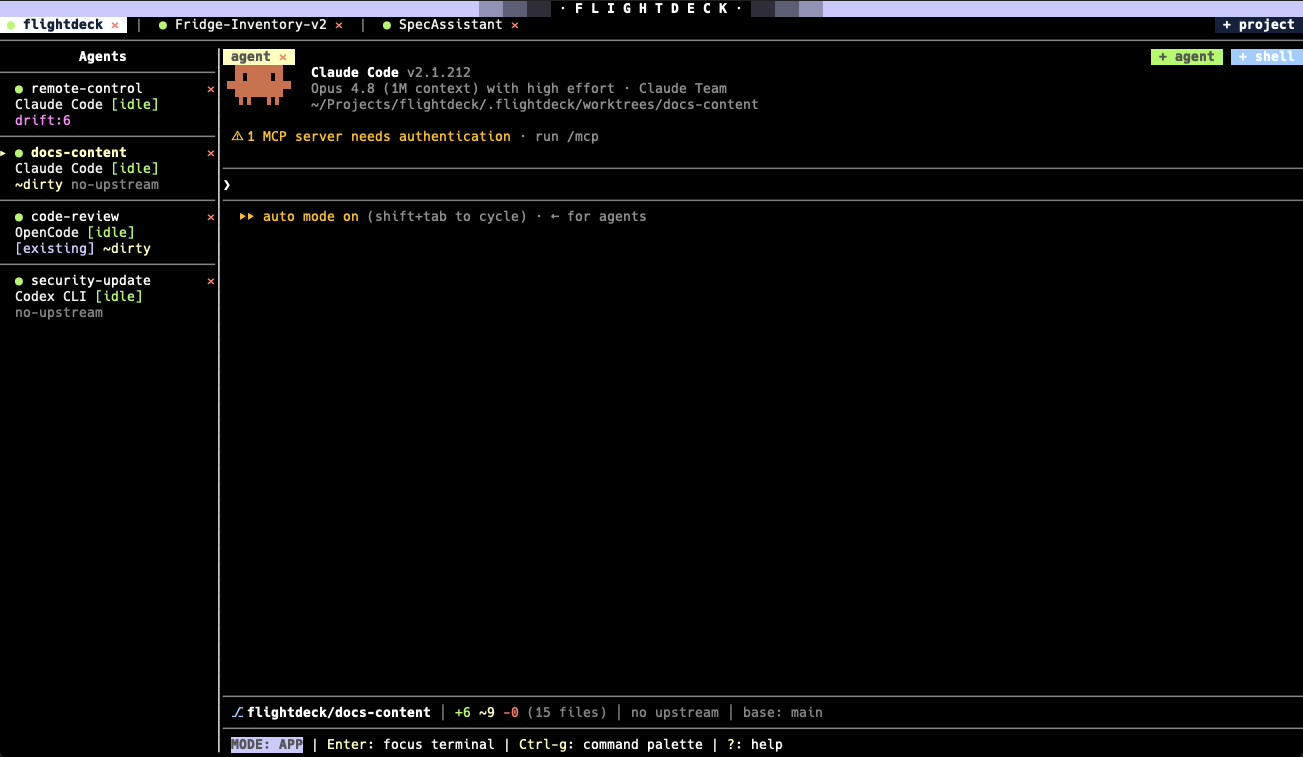
Every region of the FlightDeck screen, top to bottom.
Screen layout
┌──────────────────────────────────────────────────────────────────────────┐
│ ░░░▒▒▒▓▓▓██████   F · L · I · G · H · T · D · E · C · K   ██████▓▓▓▒▒▒░░░ │  logo header
│ ● flightdeck ✕ | ● api ✕ | ● web ✕                              + project │  project tabs
├──────────────────────────────────────────────────────────────────────────┤
│ Agents          │ agent | shell 1 | shell 2                                │  terminal tabs
│  ▸ fix-login    │                                                          │
│    add-tests    │            active terminal (agent or shell)              │
│                 ├──────────────────────────────────────────────────────────┤
│                 │ ⎇ flightdeck/fix-login │ +3 ~2 -1 (6 files) │ ↑0 ↓0 │ …  │  git info bar
│                 ├──────────────────────────────────────────────────────────┤
│                 │ MODE: TERMINAL | Shift+Esc: app commands | Ctrl-g: …      │  status bar
└─────────────────┴──────────────────────────────────────────────────────────┘
- Logo header — a branded title row that shrinks on narrow terminals.
- Project tabs — one tab per open project, each with a
status dot (red = needs attention, cyan = working, dim = idle) and a
✕.+ projectopens another. - Agents sidebar — the list of agent tabs, each showing its agent, status,
and Git indicators. Move it to the right with the
ui.agent_tab_positionsetting. - Terminal tabs — within the selected agent tab, the primary
agentterminal plus any child shells (shell 1,shell 2, …), with+ agent/+ shellbuttons. - Git info bar — a one-line summary of the selected tab's worktree: branch, change counts, ahead/behind, base drift, and base branch. See Git Workflow.
- Status bar — the current input mode and the most useful shortcuts for it. Every shortcut on it is also a button: see Mouse support.
Two input modes
FlightDeck is keyboard-first and always in one of two modes. The status bar always tells you which.
Terminal mode
Keys are sent to the focused terminal, so agents and shells behave exactly as
they would normally. Bare Esc passes straight through to the hosted agent.
To leave terminal focus and enter app mode:
Alt+Escon macOS,Shift+Escon Windows and Linux,- or
F2, if you enable Use F2 to leave terminal focus in the configuration manager — useful for terminals that can't distinguish a modifiedEsc.
App mode
Keys control FlightDeck: create tabs, switch agents, push, and so on. Press
Enter to jump back into the terminal, or ? to show the keybindings help.
The command palette
Because terminal shortcut collisions are unavoidable, the command palette is
FlightDeck's dependable fallback: press Ctrl-g from either mode to open a
searchable list of every action. Type to filter, use the arrow keys to move,
and press Enter to run.
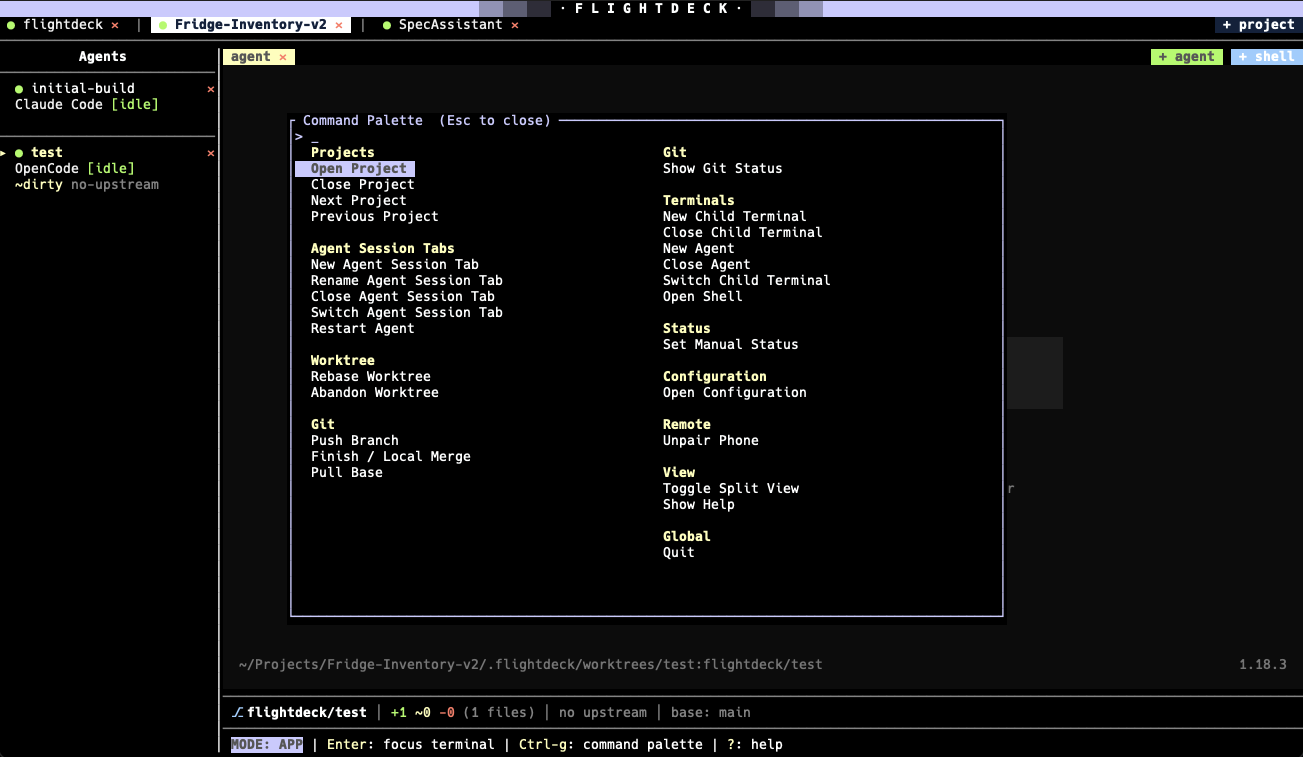
The command palette — reachable with Ctrl-g and grouped by area.
Anything you can do with a shortcut, you can also do from the palette — and a few actions (Rebase Worktree, Show Git Status, Open Configuration, Pair Phone) live only there.
Type to filter, move with the arrow keys, and confirm with Enter — or click an
entry to run it straight away. Clicking beside the box closes it; clicking a
group header or the box's own border leaves it open. An entry that asks before
it acts still asks, however you chose it.
Mouse support
FlightDeck also responds to the mouse: click a project tab to switch (or its
✕ to close), click an agent in the sidebar to select it, click a terminal tab
to switch terminals, and use the + project / + agent / + shell buttons.
You can select text in the viewport and scroll with the wheel.
The command palette and the status bar are clickable too. Each label does exactly what the key printed
beside it does: the mode chip and the hint next to it switch modes, Ctrl-g: palette opens the command palette, and F1 / Alt-h: help opens the help
screen. The parts that only report state — ISOLATED, the input lock, and the
update notice — are deliberately inert, so a stray click cannot start an
update.
The help, about and git status windows close on a click beside them, as well as on any key. A click on the window itself leaves it open. The pairing and browser access screens are the exception: they hold a code or a live binding, so only the keyboard closes them.
The most useful shortcuts
| Shortcut | Action |
|---|---|
Ctrl-g | Command palette |
Ctrl-n | New agent session tab |
Ctrl-t | New child terminal |
Alt-↑ / Alt-↓ | Previous / next agent tab |
Alt-1..9 | Jump to agent tab by number |
Shift-← / Shift-→ | Previous / next project |
Ctrl-p | Push branch |
Ctrl-s | Set manual status |
Ctrl-r | Restart agent |
? | Keybindings help |
Ctrl-q | Quit |
The full table lists every binding, including which mode each works in.