Pair Your Phone
Pairing establishes the end-to-end-encrypted link between FlightDeck Remote and your Mac. You do it once per Mac; the pairing persists across app launches until you unpair. One phone can be paired with up to four Macs at once — see Pairing more than one Mac.
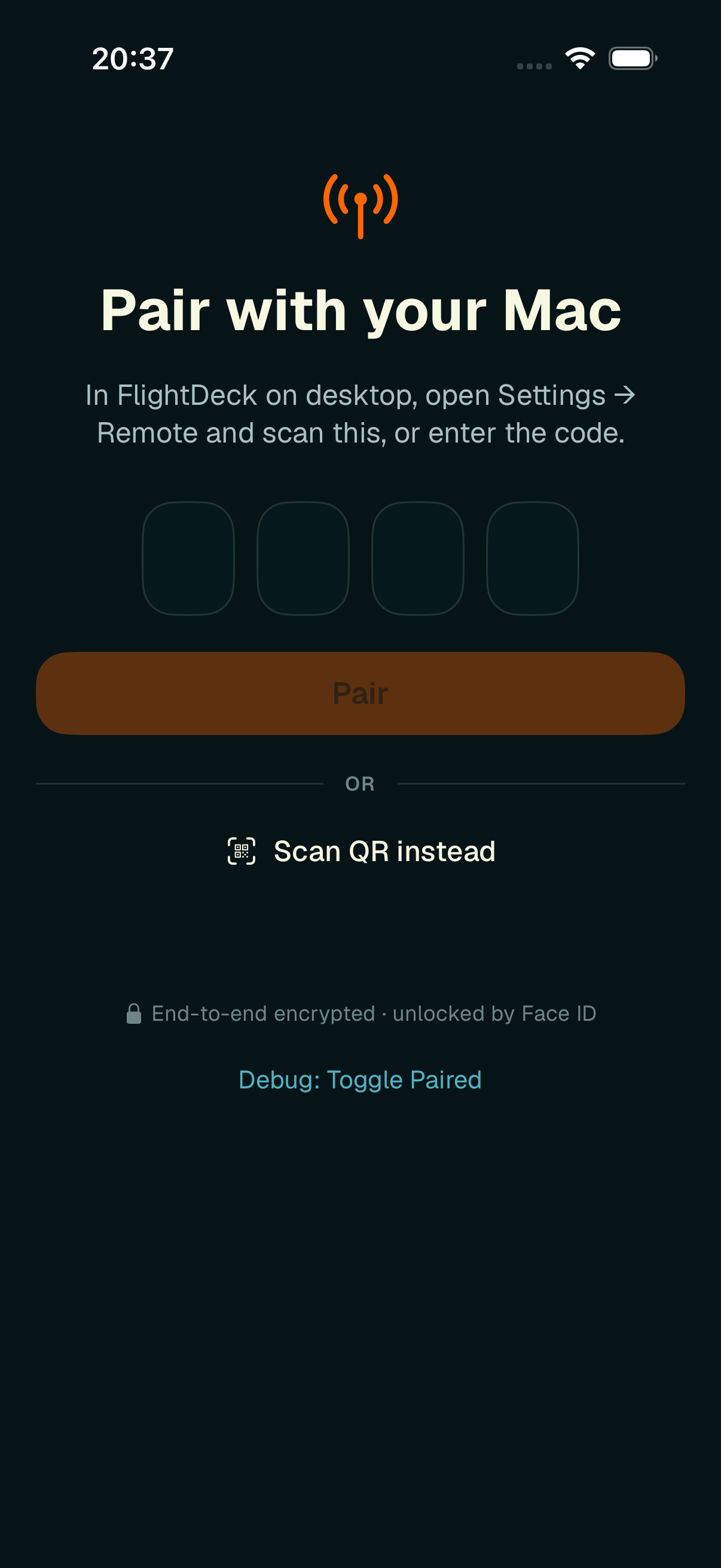
The pairing screen — scan the QR shown on your Mac, or type the 4-digit code.
On your Mac
- Make sure FlightDeck Remote is enabled on the desktop. It's off by
default — set
enabled = trueunder[remote]in your config, or just run the next step, which turns it on. - Open the command palette (
Ctrl-g) and run Pair Phone. FlightDeck shows a pairing overlay with a QR code, a 4-digit code, and a live expiry countdown.
On your phone
Open FlightDeck Remote. While unpaired, it opens on the Pair with your Mac screen. Choose either path:
- Scan QR — tap Scan QR instead and point the camera at the QR code on your Mac.
- Enter the code — type the 4-digit code into the four boxes and tap Pair.
When pairing succeeds, the desktop overlay shows Paired ✓ and the phone moves straight to the Feed.
Why pairing matters
Pairing is the real trust decision: once paired, your phone can send commands that run on your Mac. The QR/code carries the secret that bootstraps the encrypted channel, and your device registers an identity keypair whose private half stays in the iOS Keychain / Secure Enclave. The relay authenticates devices by key and routes only by pairing ID — it can never read your traffic.
Bad codes and errors
Entering the wrong code shows an inline error and a brief shake, and keeps you on the pairing screen so you can try again. The Pair button stays disabled until you've entered all four digits.
Pairing more than one Mac
One phone can drive several Macs — a laptop and a desktop, home and work — from a single app. Once you're paired with your first Mac, add another from either:
- the
+in the Feed header, or - Add machine in Settings → Machines.
Both open the same pair-a-Mac flow (QR or 4-digit code) as a sheet; on the desktop you're adding, run Pair Phone exactly as before. The new Mac appears in the Feed the moment it connects, and its projects interleave with the rest.
All your Macs share the phone's single device identity — adding a Mac never generates new keys, and unpairing one leaves the others' keys untouched.
Naming your Macs
Each Mac reports its own name (its computer name), shown on the machine chip in the Feed and in Settings → Machines. To override it — handy when two Macs have similar names — tap the machine's row in Settings → Machines and use Rename machine. Your override always wins; Reset to Mac's name clears it and falls back to what the desktop reports. Renaming on the desktop updates the reported name automatically.
Unpairing
You can unpair one Mac or all of them:
- One Mac — open Settings → Machines and tap the red minus (–) on its row, then confirm. This removes it from the phone and revokes it on your Mac; your other Macs stay paired.
- This device entirely — Unpair this device in Settings → Security drops every pairing and returns you to the pairing screen.
On the desktop side, run Unpair Phone from the command palette. After unpairing a Mac you'll need to pair it again to reconnect. See Settings & Security for the full Settings layout.